KEMO IPTV on Televizo: Android Playlist Setup Guide
KEMO IPTV APPLICATION GUIDES · UPDATED 10 NOVEMBER 2026
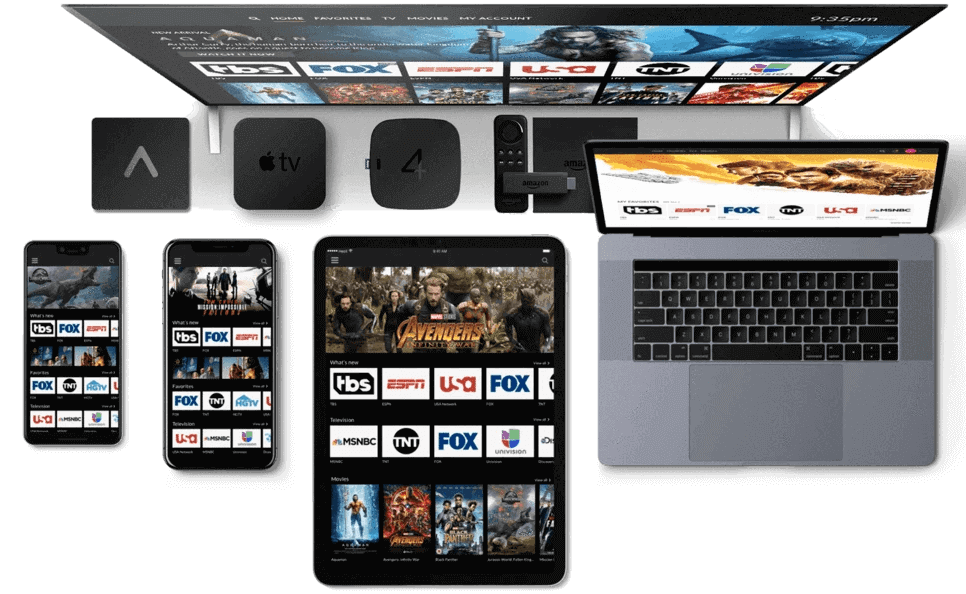
Plan your KEMO IPTV Televizo setup
Televizo is an Android video player for phones, tablets and compatible television devices. Its developer states that users must provide their own playlists. For a KEMO IPTV setup, that means confirming the service format and obtaining your account’s playback information before expecting anything to appear in the application. The player and the subscription are separate parts of the arrangement.
This guide focuses on a simple first playlist and a practical test routine. It does not promise that every device, source format or subscription is compatible. If your edition presents different labels, use its playlist controls and the developer’s current documentation rather than forcing instructions intended for another release.
Check the device and download source
Identify the exact Android device you plan to use. A phone with a touchscreen and a television operated by a remote can present different navigation patterns even when the application name is the same. Check available storage, update the operating system where supported and make sure you can access the device’s official app distribution route.
Start from televizo.net or the verified Google Play listing for the package com.ottplay.ottplay. Do not confuse a reseller website offering a television subscription with the player’s developer. If the developer provides an installer for your supported device, follow that current route. Avoid modified packages that advertise unlocked features or include unknown playlists.
Prepare your playlist information
Ask KEMO IPTV which login format your package provides and whether it is compatible with your installed Televizo edition. For a playlist URL, keep the complete address available, including all parameters. If your edition offers a structured account login and support confirms that method, prepare the separate server and credential fields instead. Do not convert between methods by guessing the missing values.
Choose a short display name that identifies the room or device. This label is for your convenience and should not contain a password. Keep the original activation message private, but make it easy to consult while typing. A television keyboard can insert an unnoticed space at either end of a copied address.
Add the first KEMO IPTV playlist
Open the control for creating or adding a playlist. Select the input method corresponding to the details you received, then enter the relevant address or login fields. If you are using a remote playlist link, paste the full URL into the address field rather than a field intended for a locally stored file. Review the entry before saving.
Allow the import to finish without repeatedly pressing the confirmation button. Then open the newly named playlist and look for an included channel or video. If the list remains empty, note whether the app displayed a connection error, a parsing error or no message at all. Those outcomes call for different checks.
Test touch and remote navigation
On a phone or tablet, test whether you can move between the playlist, category view and playback without losing your place. On a television, repeat that process using only the remote. A setup is not convenient simply because one stream starts; the household also needs a reliable way to return to the list and choose another item.
Try a short sequence: open the playlist, locate an included source, start playback, leave playback and return to the same category. Record any step that fails or behaves unexpectedly. Avoid changing many display options until this basic route works consistently. That leaves you with a clear baseline for later personalization.
Favorites, search and channel organization
The developer lists favorites, sorting and search among Televizo’s features. Use these tools gradually. Add a small group of frequently watched channels and test that the favorites remain after reopening the app. Search with a distinctive part of a channel name when a complete title gives no result, and check whether a category filter limits the search scope.
If an item disappears, inspect sorting and hidden-category choices before reporting that the subscription has removed it. Do not delete the working playlist merely to reorganize the interface. A few deliberate changes are easier to maintain than a complete rearrangement made before you understand how your installed version handles categories.
Program guide and playback controls
Televizo’s listing describes guide support and audio, video and subtitle selection. These controls depend on the data and tracks available from the source. If guide information is missing, verify the EPG details supplied with your service and check the device clock. If a separate guide address is required by your setup, use the provider’s correct address and let it refresh.
For unexpected language, inspect the available audio tracks during playback. For subtitles, first determine whether the source includes them. A visible control does not create a track that is absent. Test another confirmed item before changing global settings, especially when the issue affects just one channel or video.
Casting requires its own check
The developer lists Chromecast support, but a casting button is not a guarantee that every source and receiving device will work together. Begin by proving that the stream plays on the originating device. Then check the receiving screen, local network and the relevant casting instructions for your installed version. Keep both devices available during the first test.
Ask how casting affects your subscription’s connection allowance. Do not assume that a stream running on a phone and another on the television count as one session merely because you started them together. If casting fails while local playback works, report that distinction; it narrows the problem to the handoff or receiving setup.
Troubleshoot without losing a working playlist
If nothing imports, compare the saved address with the original and confirm account status. If the list imports but all items fail, stop other sessions and test a confirmed source. If only one item fails, keep its name and the time of the attempt. A single broken item does not justify wiping the application or resetting the entire device.
When playback stops intermittently, note whether the phone changed networks, the television lost wireless reception or another household activity began using the connection. Test one variable at a time. If you need to clear application data, first understand which profiles and preferences will be removed and ensure you have the legitimate details needed to restore them.
Televizo questions and support
Does purchasing Televizo Premium include KEMO IPTV? Treat player licensing and service access separately and check both sets of terms. Can I move from a phone to a television? Confirm support for the receiving device and the account’s viewing allowance before adding another installation. Does the app supply a channel list? The developer says users provide their own playlists.
For help, include the device model, Televizo version, playlist method and exact stage where the problem occurs. Keep credentials and private playlist parameters out of screenshots. Compare the OTT Navigator or GSE guides if your requirements differ, and return to the KEMO IPTV apps hub for a summary of every supported guide.
Publisher information and guide scope
Publisher reference: Televizo official information. App features, distribution and menu labels can change. This is independent KEMO IPTV setup guidance, not a claim of endorsement by the application developer. Confirm the source format available for your own subscription and use only authorized content.